HubBuyCN: Mastering Order Verification – How to Track QC Photos and Order IDs
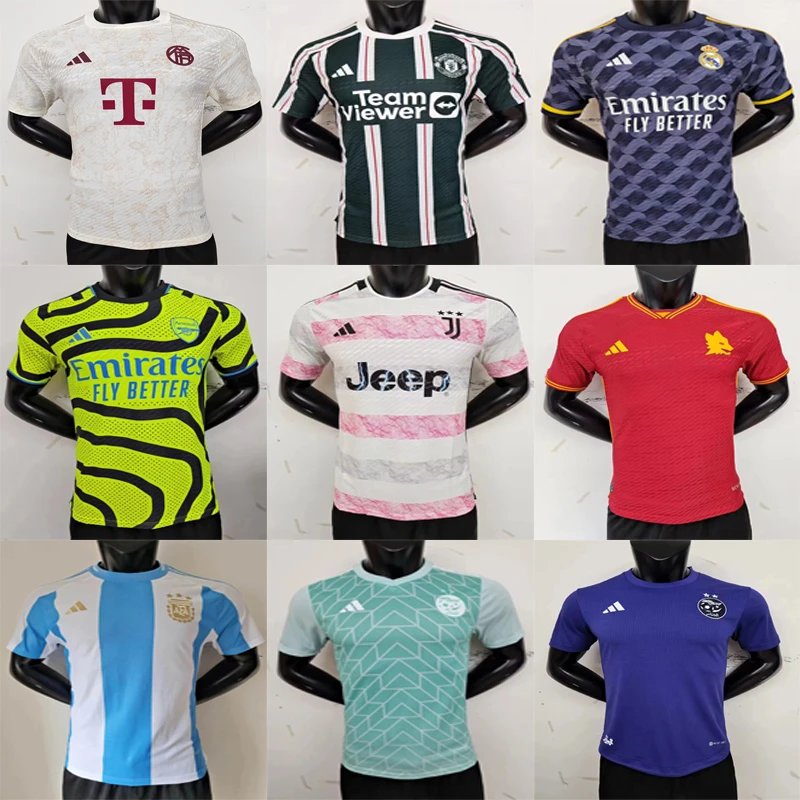
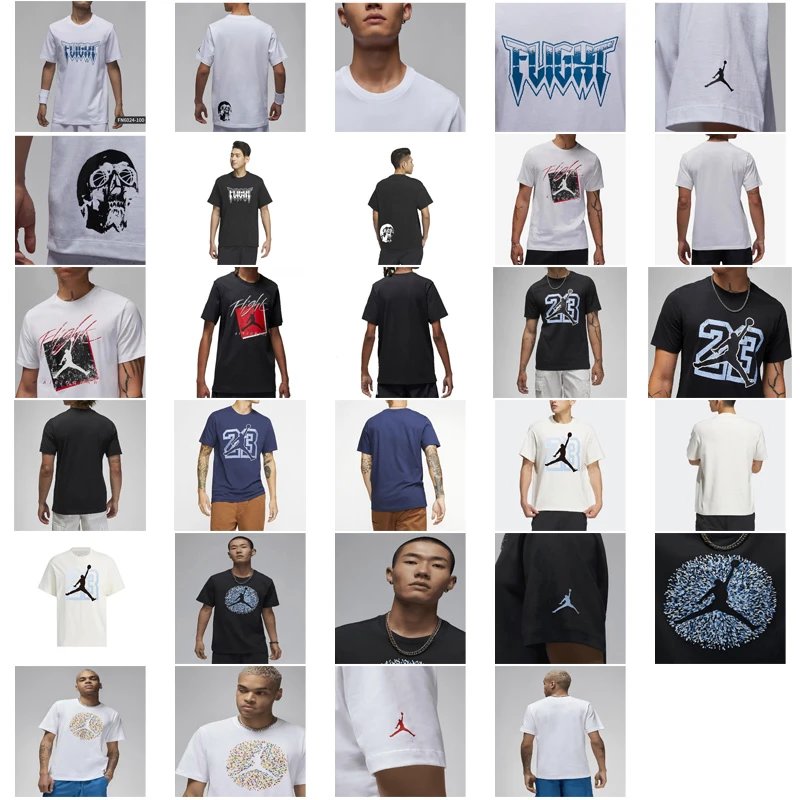
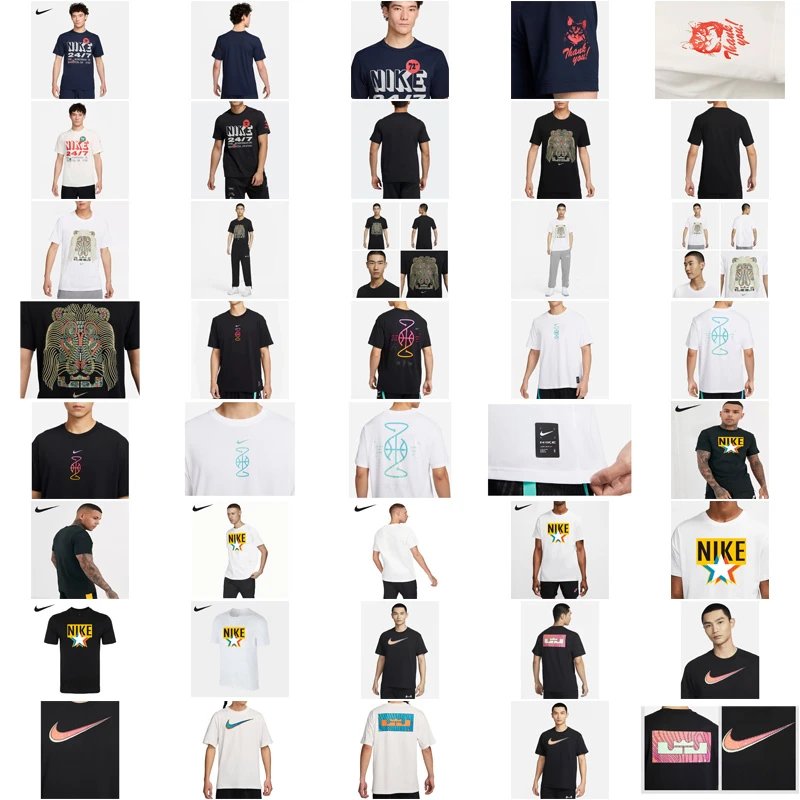
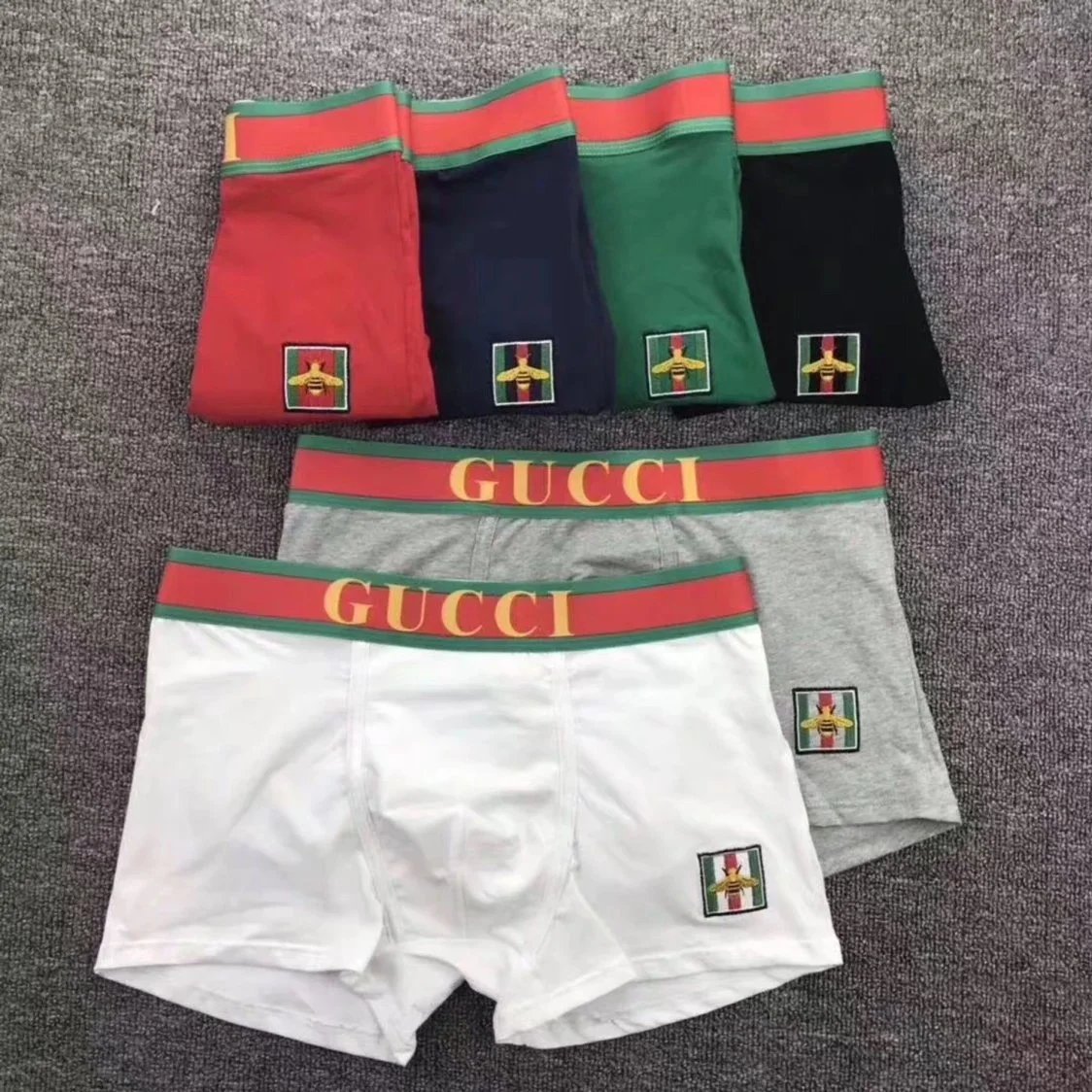
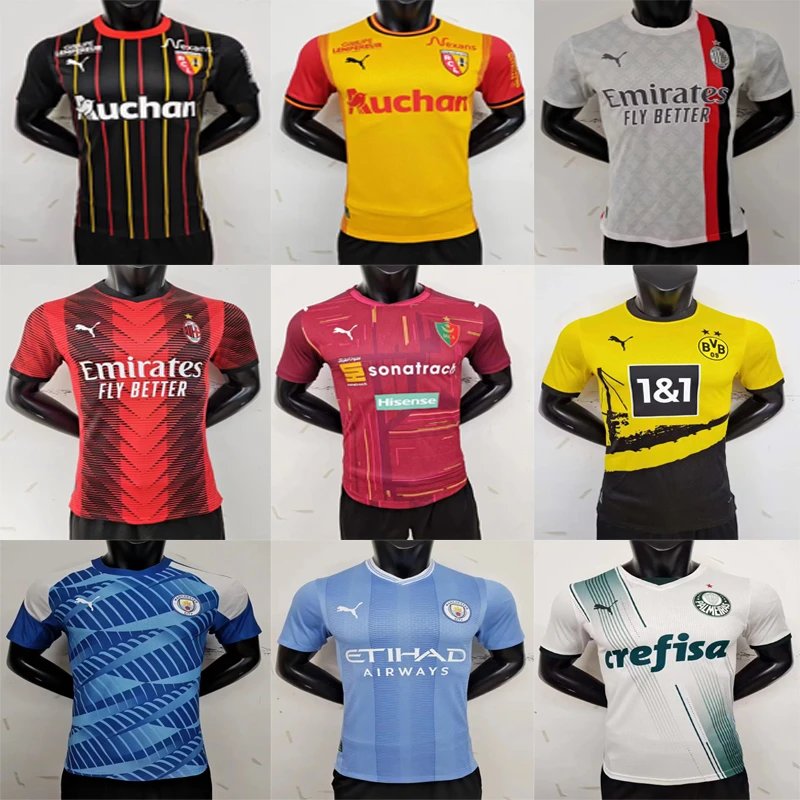
Effective order management on HubBuyCN hinges on meticulous record-keeping. A well-structured spreadsheet is your single source of truth, ensuring transparency and preventing errors throughout the purchasing journey. This guide outlines a clear system for logging inspection images, purchase links, and product codes.
Building Your HubBuyCN Tracking Spreadsheet
Start by creating a spreadsheet with the following core columns. This structure links visual verification with key transactional data.
| Column Header | Purpose & Data to Log | Example Entry |
|---|---|---|
| Order ID / Tracking # | The unique identifier from your HubBuyCN order confirmation or the shipment tracking number. | HBCN20241025XYZRB123456789CN |
| Product Name / Description | A brief, clear name of the purchased item for quick reference. | Men's Casual Blazer, Navy, Size L |
| Product Code / SKU | The supplier's or factory's specific code. Crucial for re-ordering or identifying variations. | BLZ-NV-L-887 |
| Purchase Link | The direct URL of the product page. Paste the full link for easy one-click access. | https://www.source-site.com/item/123456789 |
| QC Photo Link | The most critical column. Insert hyperlinks to your Pre-Shipping Quality Control (QC) photos stored in cloud services (e.g., Google Drive, Imgur). | LINK: Drive Folder for HB20241025XYZ |
| Status & Notes | Log current status (e.g., Awaiting QC, Approved, Shipped) and any discrepancies noted in photos. | "QC Approved. Color matches link. No visible flaws." |
The Tracking Workflow in Practice
-
1. Order Placement & Initial Logging
Immediately after placing an order via HubBuyCN, create a new row. Input the Order ID, Product Name, the exact Product Code, and the Purchase Link. This forms your baseline.
-
2. Integrating QC Photos
When your agent sends Pre-Shipping inspection photos:
- Upload all images to a dedicated, well-named folder in your cloud storage (e.g., "HubBuyCN_Order_HBCN20241025XYZ").
- In the QC Photo Link
- Compare the photos against the product page linked in the Purchase Link column. Check for color, style, and logo accuracy.
-
3. Verification & Status Update
Carefully inspect the logged QC photos. In the Status & Notes
-
4. Finalizing and Archiving
Once the order is shipped, update the status with the tracking number. The spreadsheet now holds a complete chain of evidence: from the initial product code and source link to the actual photos of your procured item.
Key Benefits of This System
Enhanced Transparency
Creates a visual and data-driven history for every order, accessible to you or your team at any time.
Streamlined Problem Resolution
If a received item differs from expectations, you have immediate proof – the product link, the ordered code, and the QC photos – to facilitate discussions with your agent.
Efficient Re-ordering
Accurate logging of Product Codes and Purchase Links allows for perfect replication of successful orders.
Scalable Management
This method scales effortlessly from a few items to hundreds, turning order verification from a chaotic task into a manageable, systematic process.